INFORMATIONAL ** THIS INFORMATION HAS NOT BEEN VERIFIED **
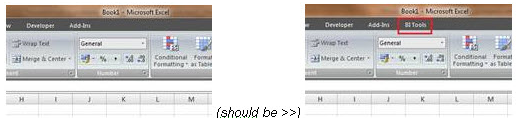
BI Tools menu is missing in SMI Report Designer for Sage MAS 90 and 200.
Entry Type: Informational
Product: Sage MAS Intelligence
Application: SMI Report Designer
Version Reported: 4.40
Subject:
BI Tools menu is missing in SMI Report Designer for Sage MAS 90 and 200.
Possible Resolution:
- Verify the SMI Report Designer module has been purchased.
- Verify you are running a Financial 'Designer' type of report.
Note: SMI Report Designer is compatible with Excel 2007 or higher (32-bit versions only)
BI Tools menu is missing:
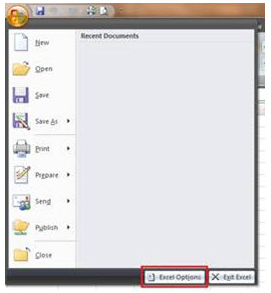
Open the Add-ins manager in Excel Options
Select Excel Options from the Office Pearl:
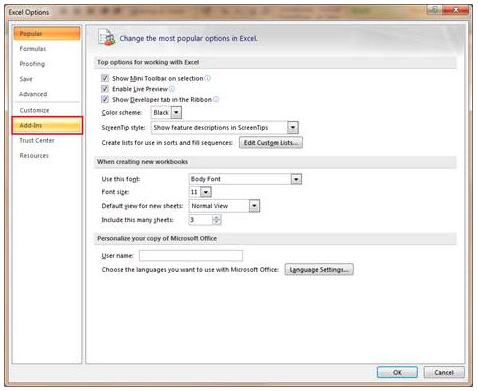
Select Add-Ins:
Verify where the BI Generator is located in the add-in lists and follow the applicable steps below:
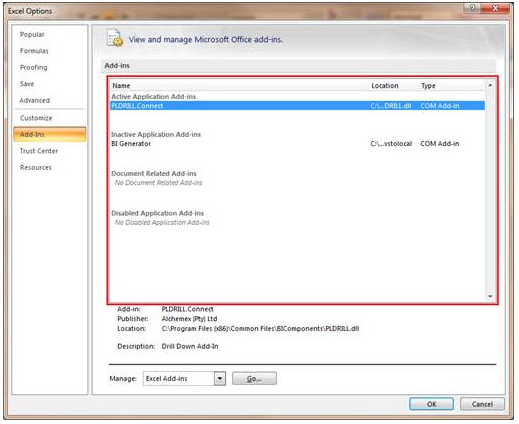
Enable Inactive Add-in
If the BI Generator add-in is located in Inactive Application Add-ins, then select COM Add-ins from the Manage list and click Go:
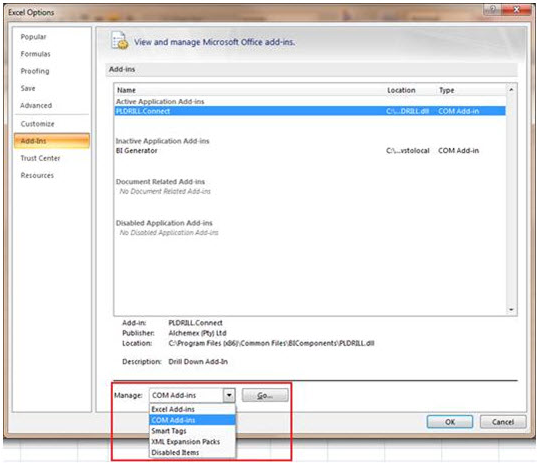
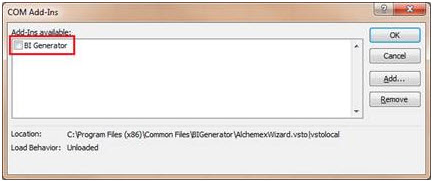
Click the checkbox next to BI Generator and then click OK:
Enable Disabled Add-in
If the BI Generator add-in is located in Disabled Application Add-ins, then select Disabled Add-ins from the Manage list and click Go:
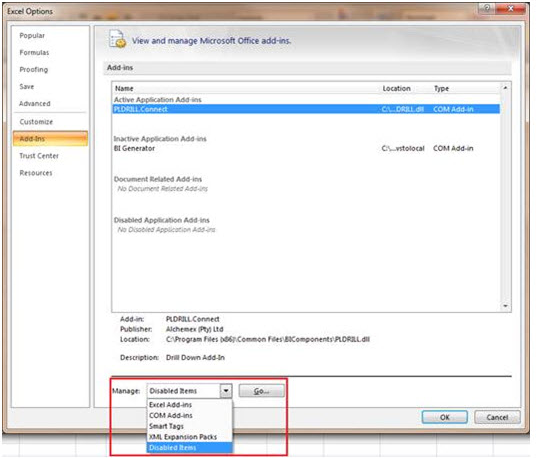
Select the BI Generator add-in and click Enable:
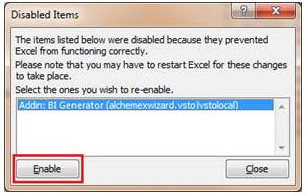
Note: Generally, when you complete the above step, the BI Generator add-in will change from Disabled to Inactive. You will need to follow the steps documented above (Enable Inactive Add-in) to get the BI Tools menu to appear.
If none of the above steps work, please try the following:
- Close all instances of Excel that you have open.
- Open Task Manager.(Right click on your Task bar and select Task Manager)
- Select the Processes Tab and locate any EXCEL.EXE items and (for each Excel.exe process) right click on the item and select End Process.
- Once all instances of EXCEL.EXE are removed, open Excel and start from the beginning of this document.
