How to create a Financial Report for a specific GL Segment (ex., Location, Dept.)
Entry Type: Informational
Product: SMI Report Manager
Application: Report Designer
Version Reported: All
Subject:
How to create a Financial Report for a specific GL Segment (ex., Location, Dept.) in Sage MAS Intelligence.
Possible Resolution:
In Excel, all information on Sheet 1, the raw data sheet, is manipulated by the Report Designer interface. If you would like to limit the information coming through to a particular segment, or segments, applying a parameter to your report will help here. By default, the Financial Reports Designer report brings through a column for all segments, whether they are being used or not:
The graphic above, taken from the ABC demo company in MAS 90 shows some of the columns of information in the Financial Reports Designer and highlights that all 10 segments are available. We can now apply a parameter to the report that allows for the selection of specific segments:
-
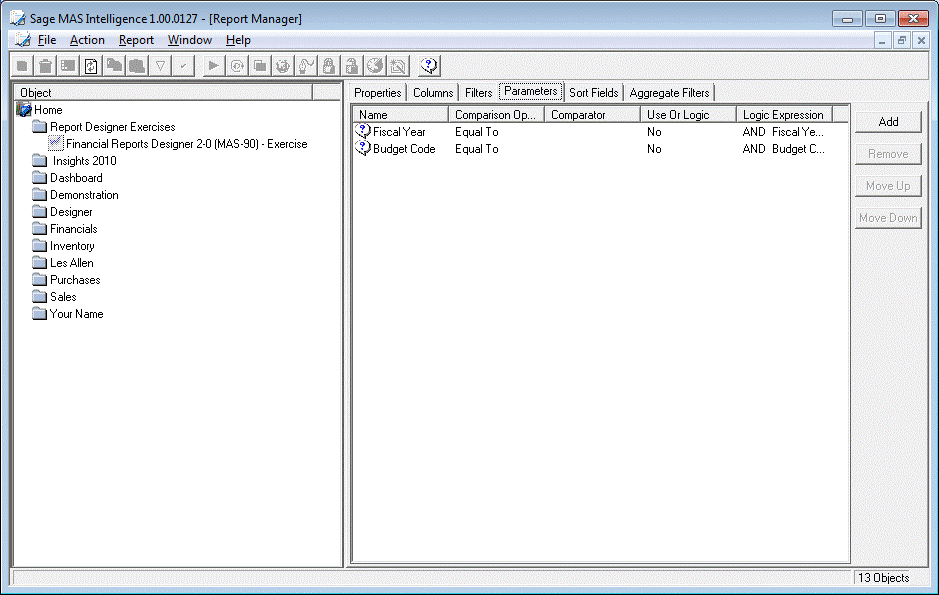
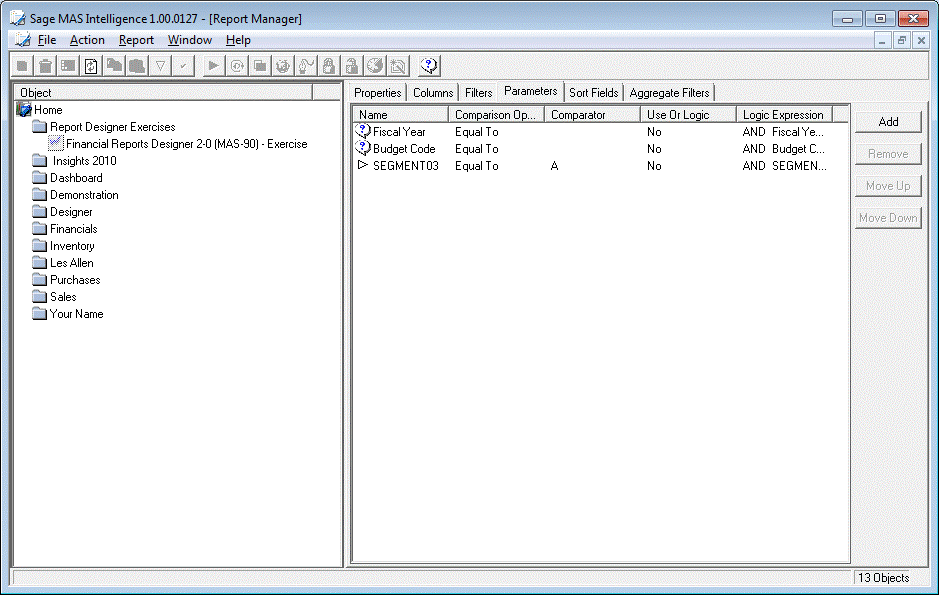
Select the Parameters tab of the Financial Reports Designer report. You will see that there are already two parameters ? the fiscal year required and the budget set. Select the 'Add' button on the right.
-
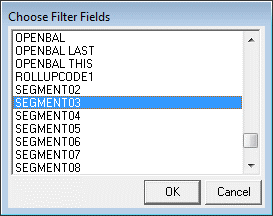
For this example, we will apply a parameter to the 3rd segment. Select SEGMENT03 from the list and click 'OK'.
-
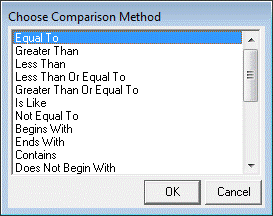
The comparison method will allow you to select specific or a range of segment information. Select 'Equal To' and click 'OK'.
-
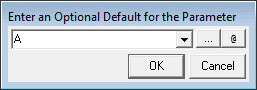
We can choose a default parameter option to show whenever the report runs. I would like to filter on the 3rd segment code of 'A'. Type in the letter A, then click 'OK'.
-
You will now have a third parameter for your report.
-
Run the report using the following parameters:
-
Fiscal Year: 2010
-
Budget Code: ORIGINAL
-
SEGMENT03: 10

The report will then run, extracting all accounts where the 3rd segment code equals A. The graphic below shows the raw data of this report:
In the first graphic on page 1, you will see that the account 100-00-A is listed in row 3.
Multiple parameters can be set for different segments, allowing for complete control over the amount of information brought through. Some tips:
-
Using the Greater Than or Equal To and Less Than Or Equal To comparators will allow you to select an entire range inside that segment. This will mean using two parameters filtering on the same segment i.e. one as Greater Than or Equal To and the other being Less Than Or Equal To.
-
If you would like to select multiple, non-sequential numbers in a segment, use the Is In comparator. This will give you a tick box against each of the values, allowing you to select multiple fields.
-
If these default segment numbers will be the ones that will always be used, then you can set them as Filters rather than Parameters. This means the user will never be prompted to choose the codes - they are set automatically and don't require user intervention.
